Email Support / Setup for KMail On Linux For Dialup 4 Less
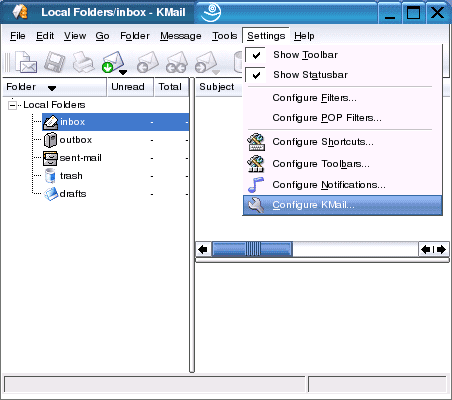
On the Toolbar, click Settings, and select Configure KMail from the drop-down menu.
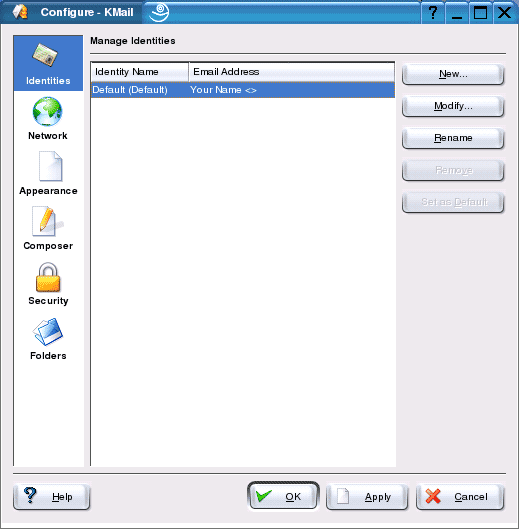
The Configure window appears.
In the left-hand column is a series of categories. Highlight Identities.
To the right, click the New button.
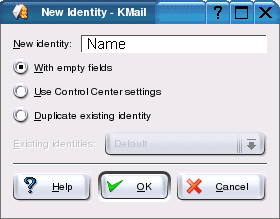
The New Identity window appears.
New identity = give the identity a distinctive name. In this example, I gave it the name "Name".
Click OK when finished.
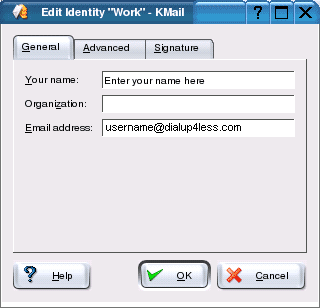
The following window appears.
Select the General tab. Your name = enter your name or a nickname.
Email address = enter the e-mail address of the account.
Click OK when finished.
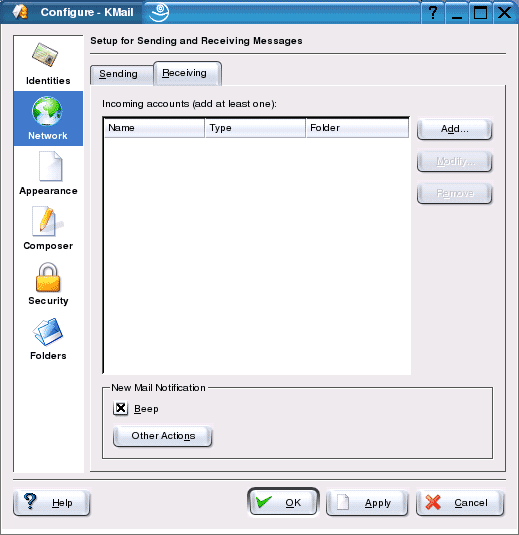
We return to the Configure window.
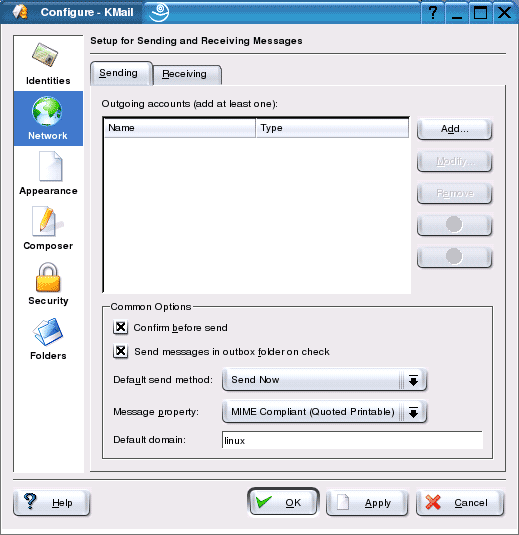
In the left-hand column, highlight Network.
To the right, select the Sending tab, and then click the Add button.
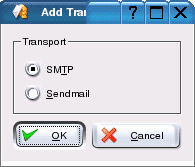
Transport:
Select SMTP. This is you outgoing server protocol.
Click OK.
Enabling SMTP Authentication:
SMTP authentication deters people from spamming you an other people. SMTP authentication is required and you will not be able to send e-mail without configuring it. It's as simple as entering a username and a password. Do the following:
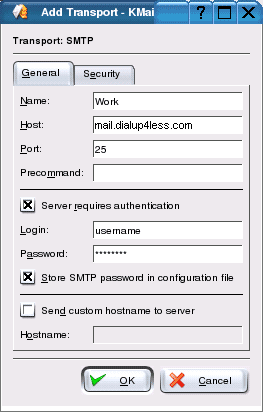
Select the General tab.
Name = enter a name for the account.
Host = enter the name address of the outgoing server: mail.dialup4less.com.
Port = enter the default port of the outgoing server: 25.
Check the box server requires authentication.
Login = enter the username of the e-mail account (everything before @dialup4less.com).
Password = enter the password of the account.
Important: passwords are case-sensitive. Ensure your Caps Lock is NOT enabled.
Check the box Store SMTP password in configuration file.
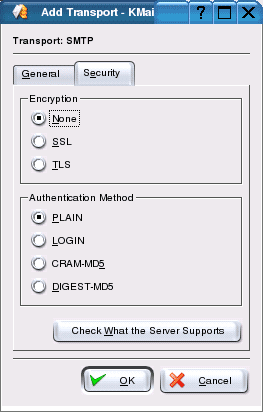
Select the Security tab.
Encryption:
Select None from the list.
Authentication Method:
Select PLAIN from the list.
Click OK to close the window.
We return to the Configuration window.
Select the Receiving tab, and click the Add button.
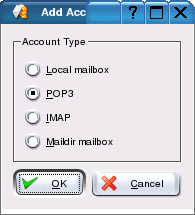
Account Type:
Select POP3 from the list of account types.
Click OK to close the window.
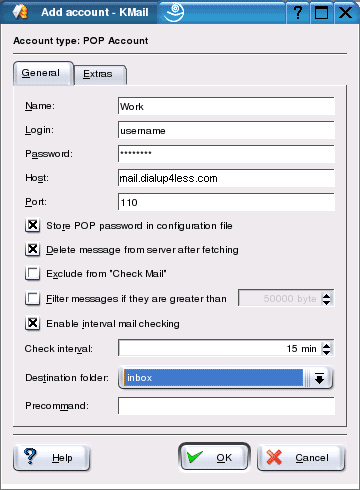
The following window appears:
Select the General tab.
Name = enter a name for the account.
Login = enter the username of the e-mail account (everything before @dialup4less.com).
Password = enter the password of the account.
Important: passwords are case-sensitive. Ensure your Caps Lock is NOT enabled.
Host = enter the name address of the incoming server: mail.dialup4less.com.
Port = enter the default port of the incoming server: 110.
Important: passwords are case-sensitive. Ensure your Caps Lock is NOT enabled.
Check the box Store POP password in configuration file.
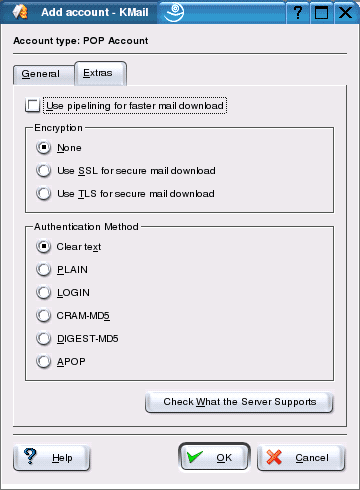
Select the Extras tab.
Encryption:
Select None from the list.
Authentication Method:
Select PLAIN from the list.
Click OK to close the window and complete the account setup.