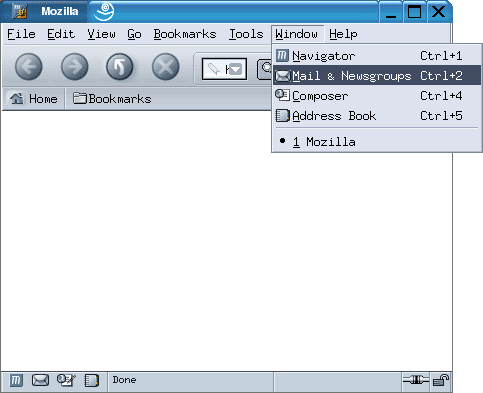
On the Toolbar, click Window and select Mail & Newsgroups from the menu.
Mozilla Mail opens.
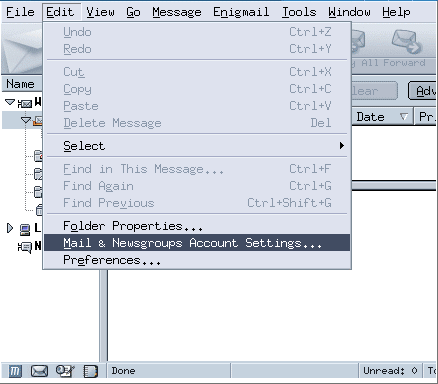
On the Toolbar, click Edit and select Mail & Newsgroups Accounts Settings from the menu.
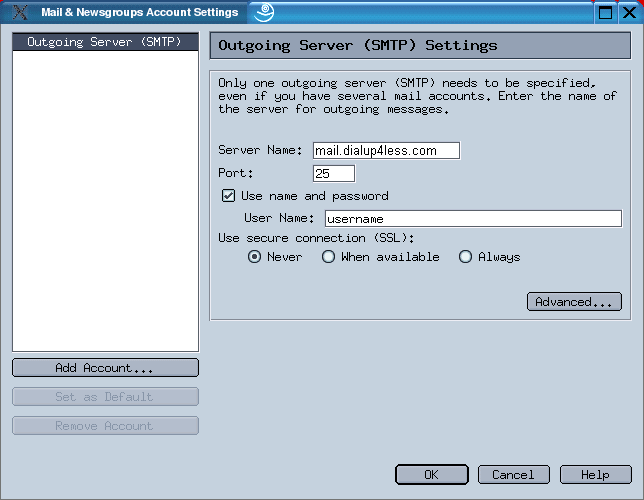
The Mail & Newsgroups Account Settings window opens.
Highlight Outgoing Server (SMTP).
To the right, you'll see three fields: Server Name, Port, and User Name.
Server Name = enter the name address of the outgoing server: mail.dialup4less.com.
Port = the default port number is perfect: 25.
Enabling SMTP Authentication:
SMTP authentication helps deter people from spamming you. It's as simple as entering a username and password. Without SMTP authentication, you will not be able to send e-mail.
Check the box Use name and password.
User Name = enter the username of the e-mail account (without @dialup4less.com.
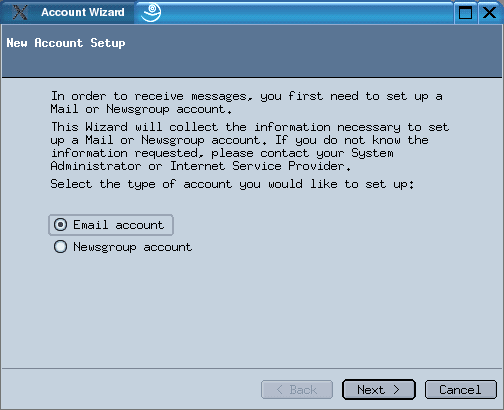
Towards the bottom-left corner, click Add Account.
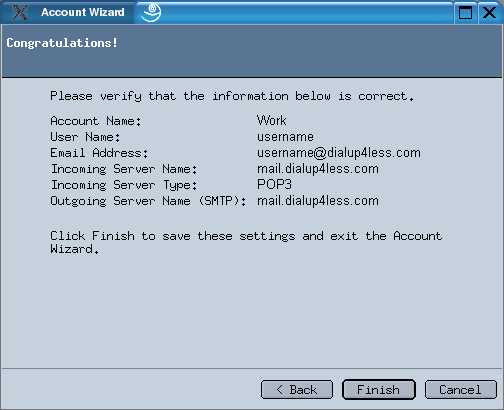
The Account Wizard launches.
Select Email account from the list.
Click Next to continue.
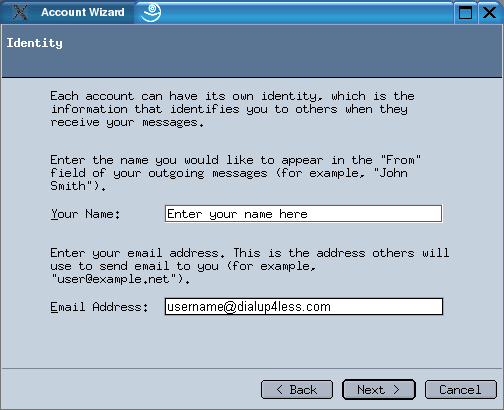
The Identity window appears.
Your Name = enter your name.
Email Address = enter your e-mail address.
Click Next to continue.
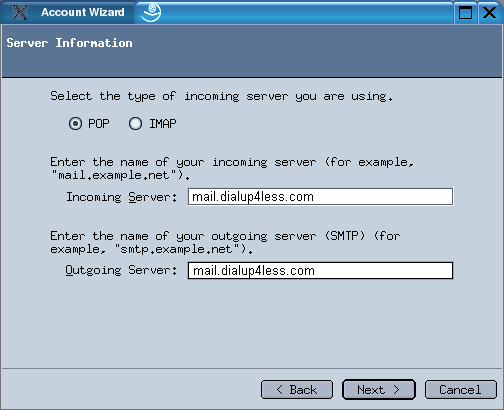
Now we'll fill out the server information.
Select POP.
Incoming Server = enter the name address of the POP server: mail.dialup4less.com.
Outgoing Server = enter the name address of the SMTP server: mail.dialup4less.com.
Click Next to continue.
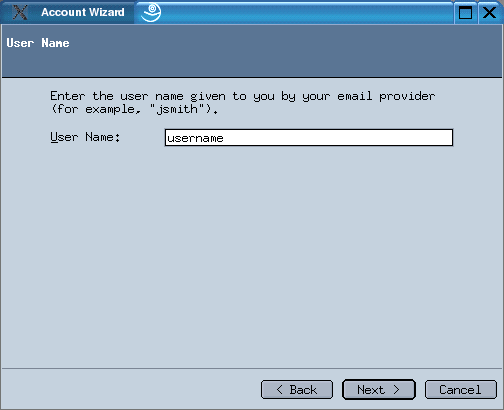
User Name = enter the username of your e-mail address (everything before @dialup4less.com.)
Click Next to continue.
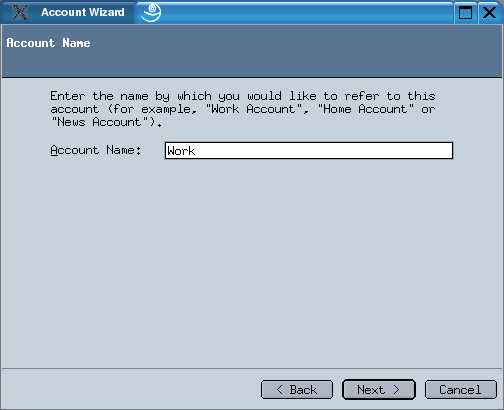
Account Name = enter a name for the e-mail account. It doesn't matter what you call it, but it should be distinctive. This will help you distinguish it from any other e-mail accounts you create.