|
|
| How to Setup Eudora 5.x for Mac OS X to Send and Receive Email |
| |
Eudora 5.x for Mac OS X


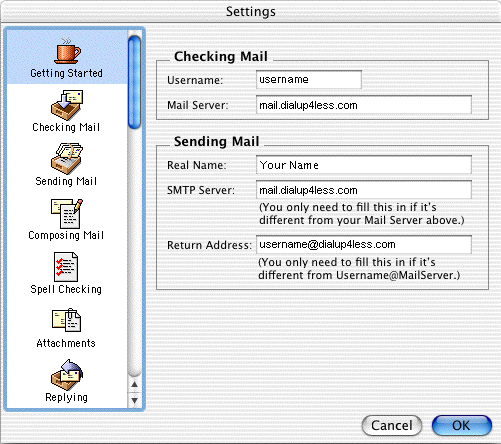
- Click the Getting Started icon.
- In the Username field, type your Dialup 4 Less username (e.g., username).
- In the Mail Server field, type your Incoming mail server (POP) (mail.dialup4less.com).
- In the Real Name field, type your name.
- In the SMTP Server field, type mail.dialup4less.com.
- In the Return Address field, type your entire Dialup 4 Less email address (e.g., username@dialup4less.com).
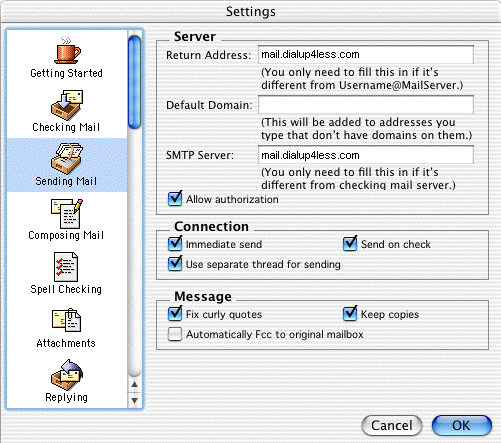
- Click the Sending Mail icon.

- Check the box next to Allow authorization.
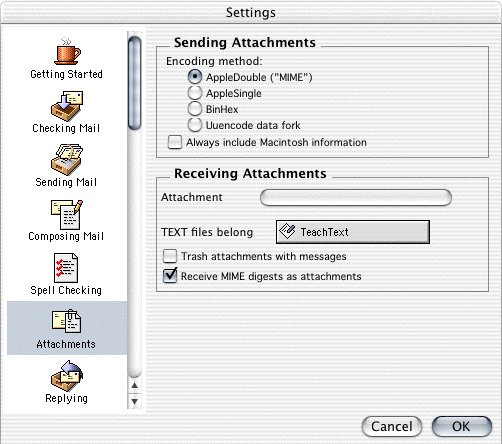
- Click the Attachments icon.

- Click the AppleDouble ("MIME") radio button in the Encoding method area.
- Click the OK button.

Back To Support Page
|
|