
|
|
| Dial Up Access Configuration for Mac OS X 10.5 |
| |
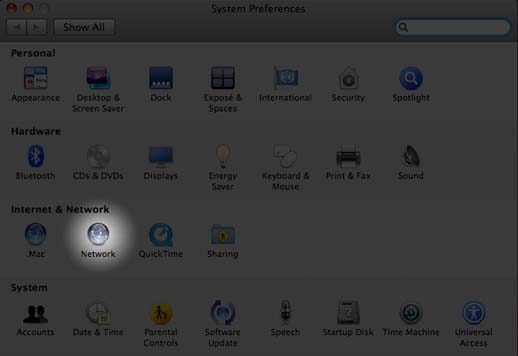
- To start, go to "System Preferences" via the Apple icon in the top left menu bar or via the Dock as shown below.
- System Preferences - You will be presented with the following options under System Preferences. Choose "Network" under the Internet & Network section to continue.
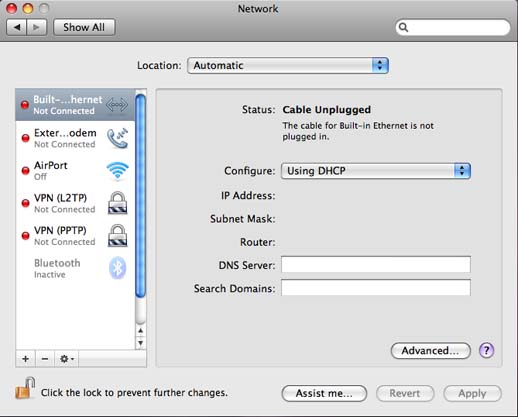
- Network - The Network window gives you a snapshot of what's going on with the various network configurations on your Mac. You will automatically be directed to the highest priority connection which by default is Built-in Ethernet. Click on the "External Modem" (or "Internal Modem" as the case may be) option in the menu on the left.
- Once you have chosen a network device to configure, you should be presented with the options below.
Enter your Dialup 4 Less username and password supplied to you. If you don't know the dialup number, click here to locate the access number closest to your area.
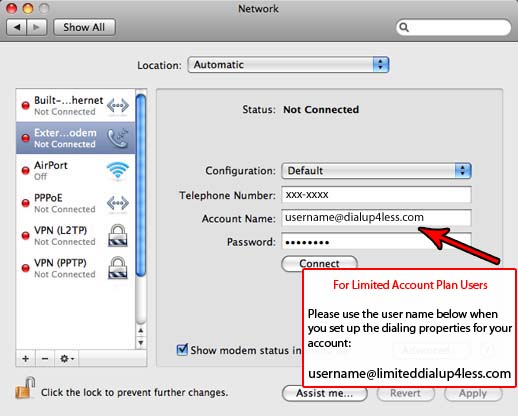
Click "Apply" to save the settings.
Make sure you put a check on the box that reads "Show modem status in the menu bar."
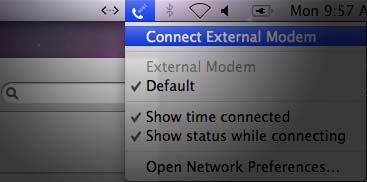
- To connect to the internet you can now click "Connect" or alternatively use the new menubar item you created.
- To connect to the Internet using this easy to use option, click on the phone icon and choose the "Connect External(Internal) Modem" option. You can use this same icon to disconnect when you're finished.
Back To Support Page
|
|