Home
About Us
About Us
Privacy Policy
Refer A Friend Program
Terms And Conditions
99.9% Uptime Guarantee
Access Numbers
Dial-Up Internet Access Numbers
United States Internet Access Numbers
Canada Internet Access Numbers
Dial-Up Plans
Dial-Up Internet Plans
Hi-Speed Dial-Up Internet
Unlimited Dial-Up Internet
Limited Dial-Up Internet
Corporate Dial-Up Internet
Wholesale Dial-Up Internet
Toll Free Dial-Up Internet
Dial-Up FAQs
Dial-Up FAQs
General FAQs
Billing FAQs
Email FAQs
Technical FAQs
Hi-Speed FAQs
Refer a Friend FAQs
Dial-Up Support
Dial-Up Support
Billing Inquiry
Make Payment
Terms And Conditions
Dial-Up Software Support
Sign Up
Contact
Hosting
Online Backup
Dial-Up Support
Windows Support
Macintosh Support
Linux Support
Miscellaneous Support
Claris for Mac OS 8/9
Outlook Express
Entourage for Mac OS X
Eudora 6.1.1 for Mac OS 8/9
Eudora 5 for Mac OS X
Mail for Mac OS X
Mail 1.3 for Mac OS X (10.3)
Mail 1.2 for Mac OS X (10.2)
Mail 1.1 for Mac OS X (10.0 or 10.1)
Mozilla for Mac OS X
Netscape 6.x for Mac OS 8/9
Netscape 6.x for Mac OS X
Netscape 7.x for Mac OS X
Opera 8
Opera 7.5
Thunderbird for Mac OS X
Thunderbird 3
Max OS X 10.5
Macintosh OS X
Macintosh OS 8/9
FireFox
Internet Explorer 5.x
Netscape 6.x
Netscape 7.x
Opera 8
Safari
Mac OS X Dial-Up Internet Access Setup Instructions
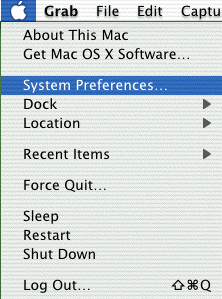
Click the
Apple
Menu, select
System Preferences
Click on the
Network
icon
For the
Show
option, choose
Internal Modem
Click on the
TCP/IP
Tab
For
Configure
, choose
Using PPP
Click on the
PPP
tab
In the
Telephone Number
field, type the local access number
In the
Account Name
field, type in your Dialup 4 Less email address
In the
Password
field, type in your password
Click the
PPP Options
button
Check the
Connect automatically when starting TCP/IP applications box
Uncheck
the
Prompt to maintain connection box
Uncheck
the
Disconnect if idle box
Check
the
Disconnect when user logs out box
Click
the
OK
button
Click on the
Proxies
tab
Uncheck
all the boxes
Click on the
Modem
tab
Choose
Apple Internal 56K Modem (v.90)
from the
Modem
menu
In the dialing section, select
tone
Check the
Show modem status in menu bar box
Click the
Apply Now
button
To connect to the internet, open up your internet browser (ie Internet Explorer or Netscape)
Back To Support Page
About Us
Privacy Policy
Refer A Friend Program
Terms and Conditions
99.9% Uptime Guarantee
Dial-Up Internet Plans
High-Speed Dial-Up Internet
Unlimited Dial-Up Internet
Limited Dial-Up Internet
Corporate Dial-Up Internet
Wholesale Dial-Up Internet
Toll Free Dial-Up Accounts
Dial-Up FAQs
General Dial-Up FAQs
Dial-Up Billing FAQs
Dial-Up Email FAQs
Technical Dial-Up FAQs
Hi-Speed Dial-Up FAQs
Refer a Friend FAQs
Dial-Up Internet Support
Billing Inquiry
Make A Payment
Dial-Up Software / Setup Support
Links:
Home
Site Map
Dial-Up Internet Access Numbers
Contact Us
Web Hosting
Online Backup
SSL Certificates
United States Dial-Up Internet Access Numbers
Alabama
Alaska
Arkansas
Arizona
California
Colorado
Connecticut
Delaware
Florida
Georgia
Hawaii
Idaho
Illinois
Indiana
Iowa
Kansas
Kentucky
Louisiana
Maine
Maryland
Massachusetts
Michigan
Minnesota
Mississippi
Missouri
Montana
North Carolina
North Dakota
Nebraska
Nevada
New Hampshire
New Jersey
New Mexico
New York
Ohio
Oklahoma
Oregon
Pennsylvania
Rhode Island
South Carolina
South Dakota
Tennessee
Texas
Utah
Vermont
Virginia
Washington
West Virginia
Wisconsin
Wyoming
Washington, D.C.
Canada Dial-Up Internet Access Numbers
Alberta
British Columbia
Manitoba
New Brunswick
Nova Scotia
Ontario
Prince Edward Island
Quebec
© 1999-2010 Dialup 4 Less ®