-
Open Mail.
-

-
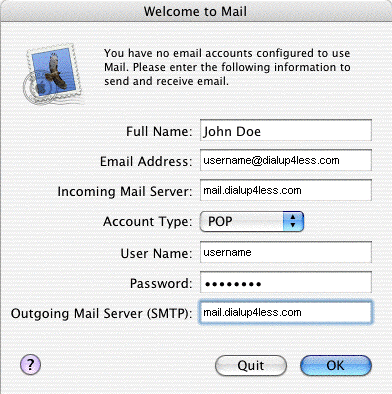
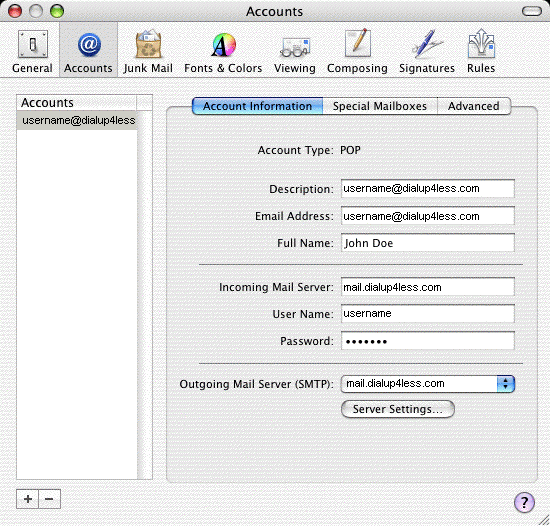
In the Full Name field, type your name.
-
In the Email Address field, type your full email address (e.g., username@dialup4less.com).
-
In the Incoming mail server field, type mail.dialup4less.com
-
Click the arrow box on the Account Type pop-up list and choose POP.
-
In the User Name field, type your username without the @dialup4less.com (e.g., username).
-
In the Password field, type your password.
-
In the Outgoing Mail Server (SMTP) field, type mail.dialup4less.com.
-
Click the OK button.
-
Note: At this point, Mail will attempt to contact the mail server. If it fails, click the Continue button on the warning message that appears to continue with the set up.
-
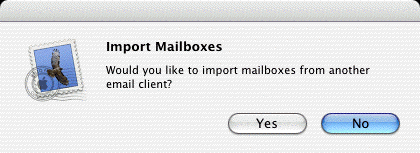
Click the No button.
-
-
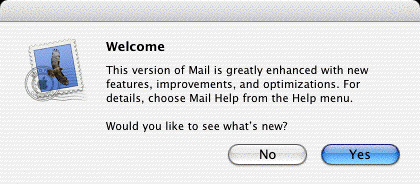
Click the No button.
-
-
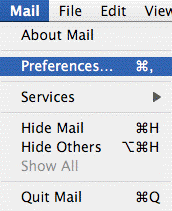
From the Mail menu, choose Preferences.
-

-
Click the Accounts icon.
-
-
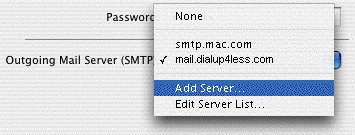
Click the arrow box on the Outgoing Mail Server (SMTP) pop-up list and choose Add Server.
-
-
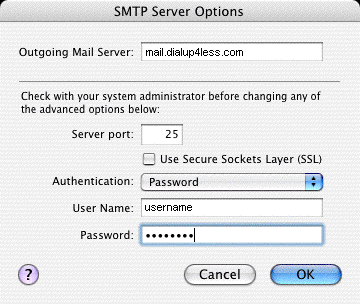
In the Outgoing Mail Server field, type mail.dialup4less.com.
-
Click the arrow box on the Authentication pop-up list and choose Password.
-
In the User Name field, type your username without the @dialup4less.com (e.g., username).
-
In the Password field, type your password.
-
Click the OK button.
-
-
Close the Accounts window.
-
-
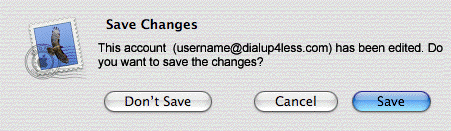
Click the Save button.
-
Back to Support Page
Please contact one of our Sales Representatives to discuss your particular requirements at 888-818-0444.