|
|
| How to Setup Outlook 2007 to Send and Receive Email |
| |
Outlook 2007
- Open Outlook 2007.
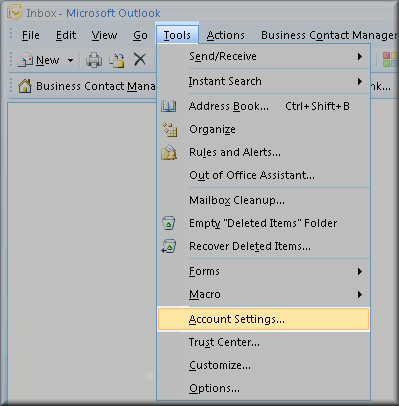
- Click the 'Tools' menu, and select 'Account Settings'

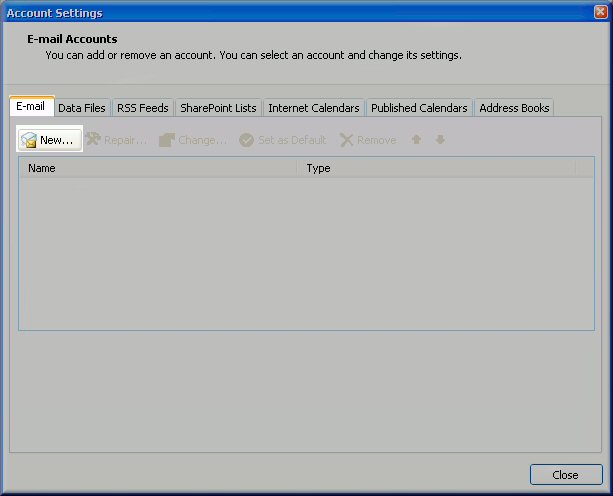
- Click on the 'Email' tab and click on the 'new' button.

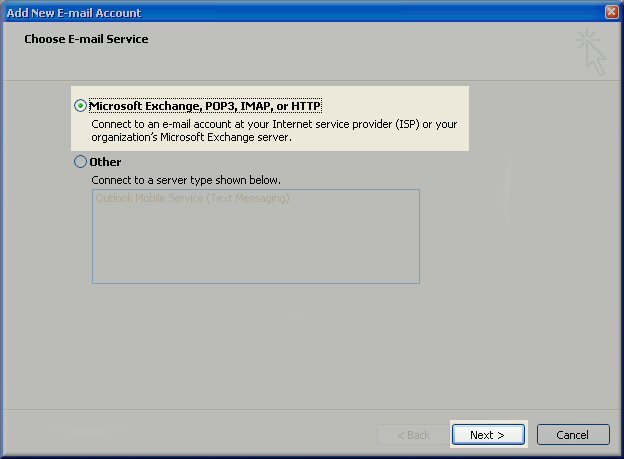
- Next select 'Microsoft Exchange, POP3, IMAP or HTTP' and click 'Next.'

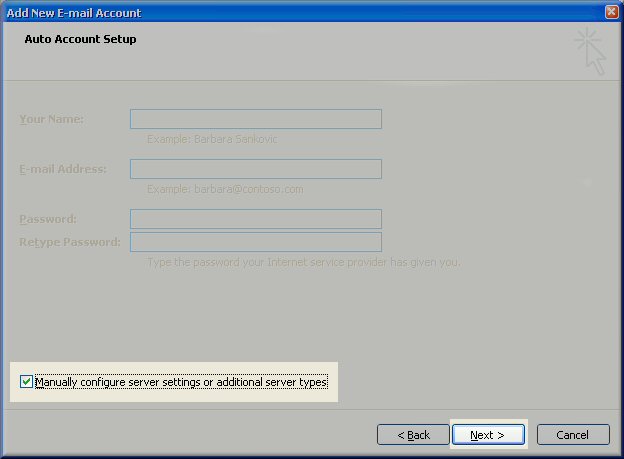
- On the Auto Account Setup window check the 'Manually configure server settings or additional server types' and click 'Next'.

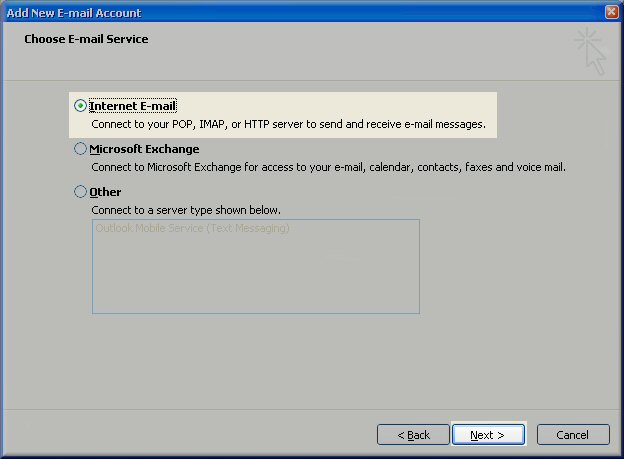
- Select 'Internet E-mail' option and click 'Next.'

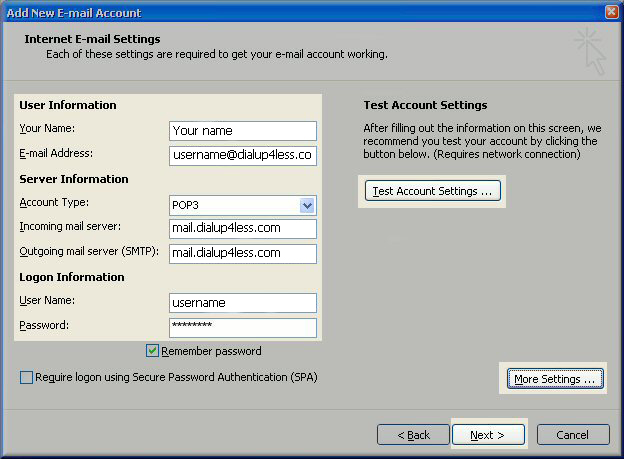
- Enter 'Your Name' as you want it to appear.
- Enter your full email address username@dialup4less.com in the 'Email address:' field.
- Select 'POP3'
- Enter 'mail.dialup4less.com' in the 'Incoming mail (POP3, IMAP) server:' field.
- Enter 'mail.dialup4less.com' in the 'Outgoing mail (SMTP) server:' field.
- Enter your username in the 'Account name:' field.
- Enter your email password in the 'Password:' field

- Click on 'More Settings...'
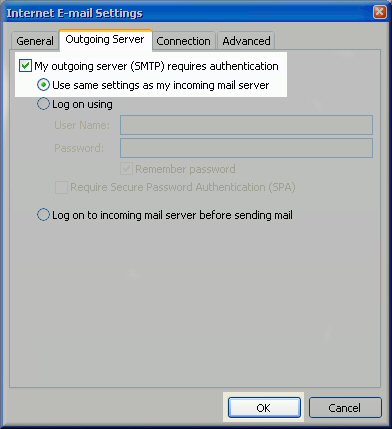
- Click on the 'Outgoing Server' tab.
- Check 'My outgoing server (SMTP) Requires Authentication'
- Make sure 'Use same setting as my incoming mail server' is also checked.
- Click on 'OK'

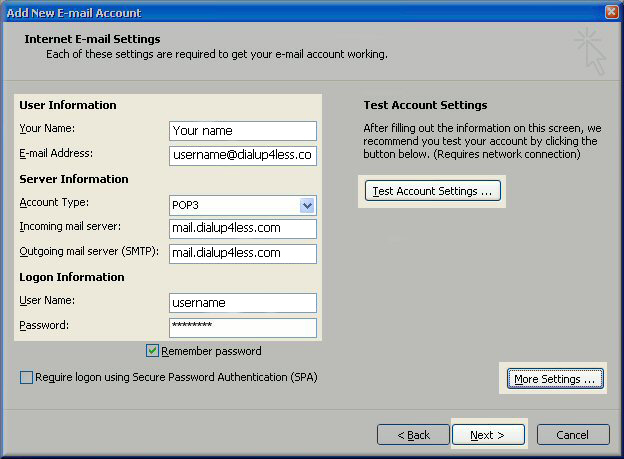
- Click the 'Test Account Settings' button and you should see all items with green check marks... Click the 'close' Button to close the test window.
- Click 'OK' to save your settings.

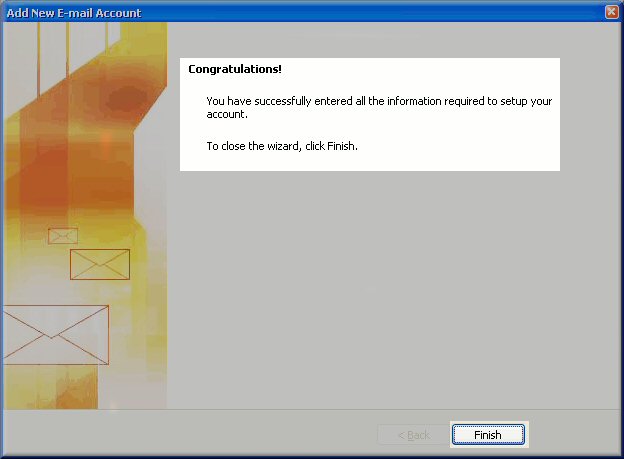
- Congratulations you have finished the setup of your email account, Click 'Finish' to close the setup wizard

Back To Support Page
|
|